

This documentation reviews the exact settings needed to replicate Template B.
Start by adding a page, then follow the steps below to add the page content.

- Check the box: Exclude title from display

Editing interface

Directions
- Add a Text page element
- Additional options:
- Bottom spacing: 5 (3.0rem | ~48px)
- Text: Align center
- Embedded image: Size natural (at least 1300px wide)
- Heading 1: "Congratulations, Admitted Students!"
- Text size lead: "Accept your admission to the U of A and the [Insert College Name] in the Next Steps Center."
- "Take your next steps" button

Editing interface

Directions
- Add Split Screen
- Full Width: Checked
- Image Order: Image Right
- Background Color: Gray 100
- Additional options
- Text Width: Content Width
- Bottom Spacing: 5 (3.0rem | ~48px)
- Image: [Unique]
- Text
- Paragraph Heading 2: Welcome to the University of Arizona [Insert College Name]!
- Style Text size Lead: Paragraph

Editing interface
Directions
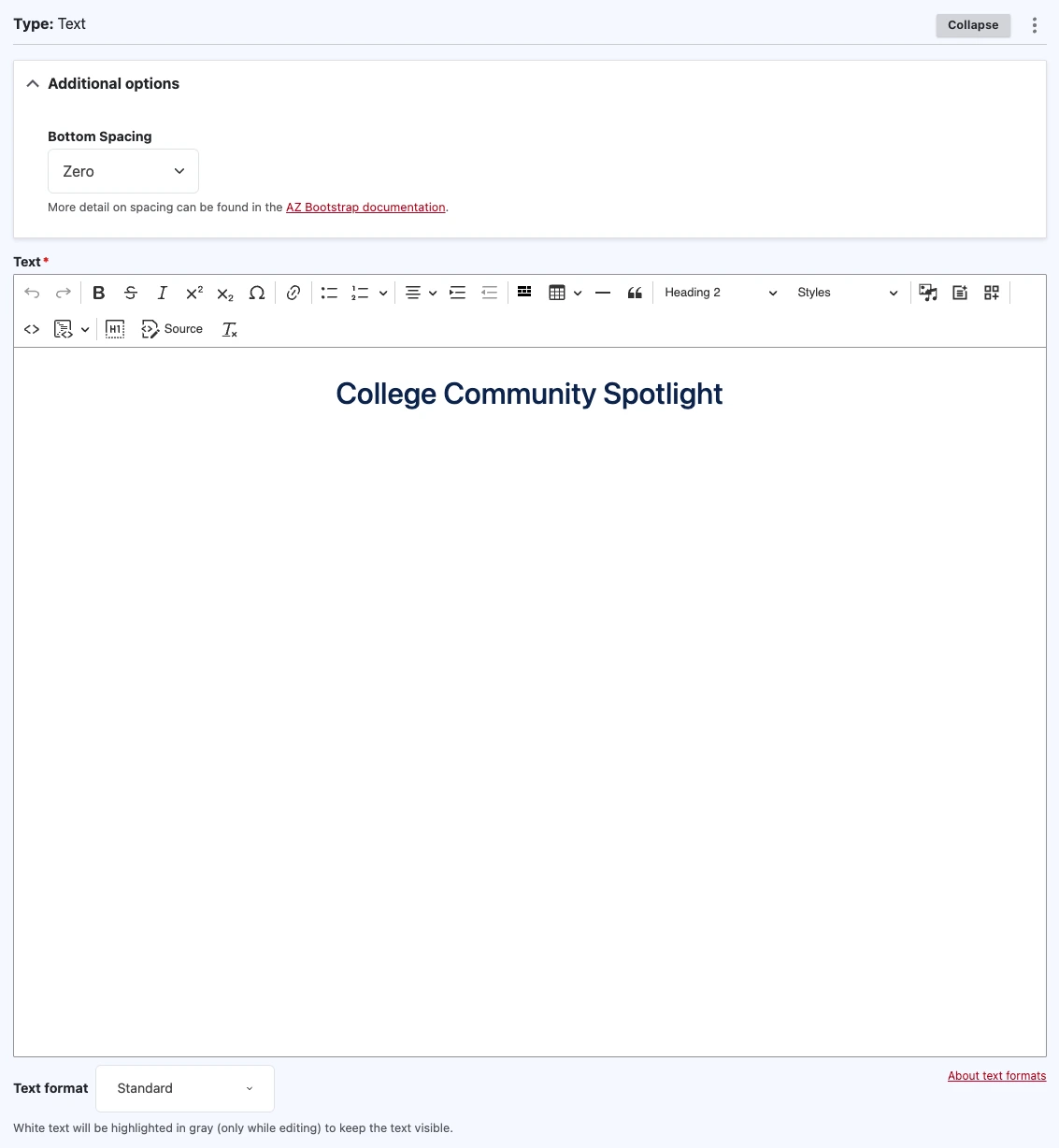
- Add Text
- Additional options
- Bottom Spacing: Zero
- Text
- Heading 2, Center aligned: "College Community Spotlight"
Editing interface

Directions
- Add the Cards page element
- Cards per row on desktop: 3
- Card style: Borderless cards
- Card title style: Title within card (default)
- Card title level: H3 (subsection heading)
- Card title display size: Default (H5 size)
- Clickable cards: Checked
- Additional options
- Cards per row on tablet: 1
- Cards per row on phone: 1
- Bottom Spacing: 5 (3.0rem | ~48px)
- Card group title color: Default
- Card group title: [Empty]
- Add card
- Card background: White
- Media: [Unique]
- Card Title: [Unique]
- Card Title Alignment: Title left
- Card Body: [Unique]
- Card Link Title: [Unique]
- Card Link URL: [Unique]
- Card Link Style: Text link
- "Add another item" and repeat for two more cards
- Save
Editing interface

Directions
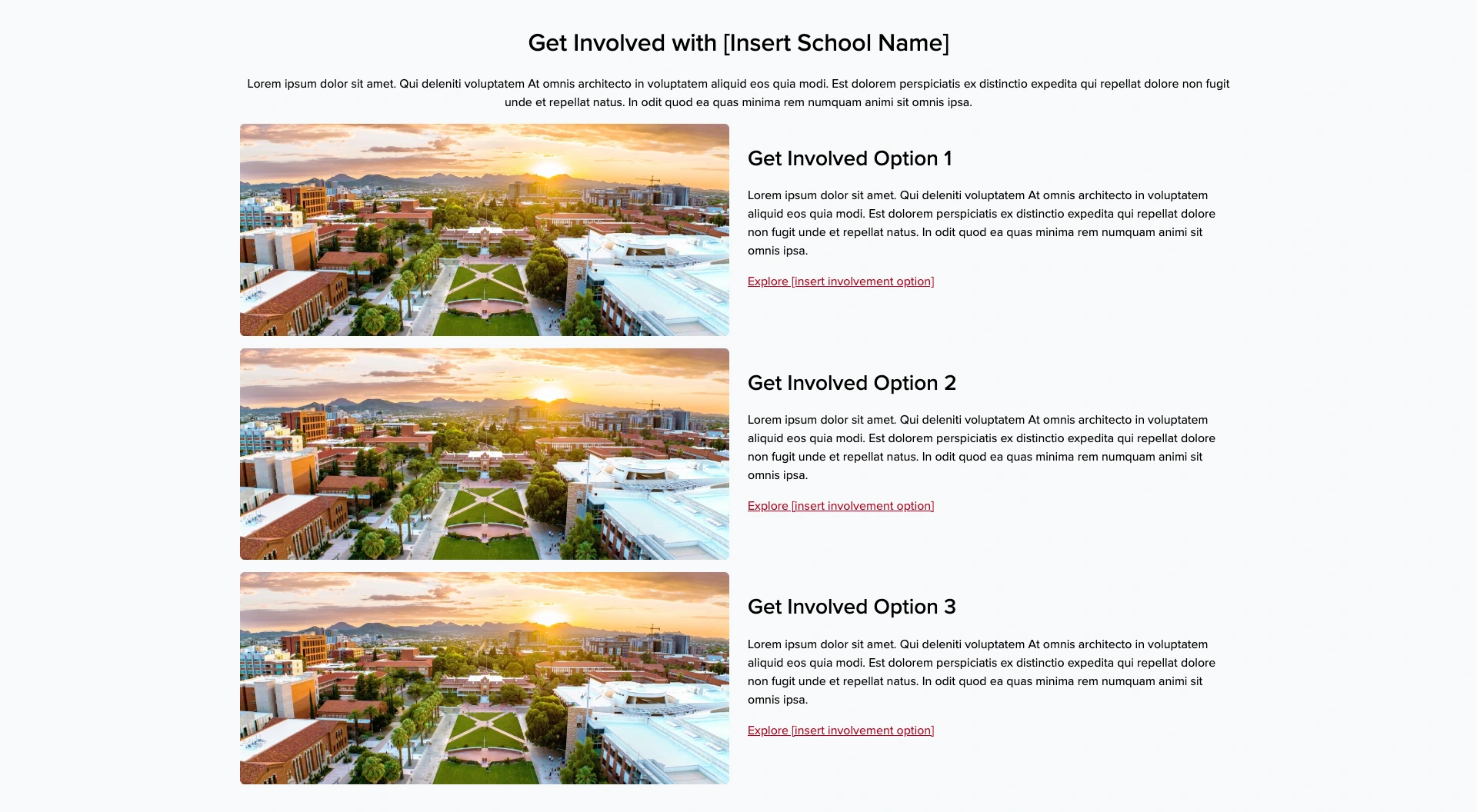
- Add Text with Background
- Full Width: Checked
- Background Color: Gray 100
- Background Pattern: None
- Space Around Content: 5 (3.0rem | ~48px) - Default
- Additional options
- Bottom Spacing: 5 (3.0rem | ~48px)
- Text
- Paragraph Heading 2, Centered: Get Involved with [Insert School Name]
- Paragraph, Centered: [Unique]
- Bootstrap Grid: Column 2, Equal width on Large screens
- First column: Embed an image
- Second column:
- Heading 3: [Unique]
- Paragraph: [Unique]
- Text link: "Explore [insert involvement option]"
- Repeat bootstrap grid two more times

Editing interface

Directions
- Add Text
- Additional options
- Bottom Spacing: 5 (3.0rem | ~48px)
- Text
- Heading 2: "Upcoming Events & Next Steps for Admitted Students"
- Bootstrap grid: Column 3, Equal width on large screens
- Within each column:
- Embed an image (size large)
- Heading 3: [Event or next step title]
- Paragraph: [Unique]
- Text link: [Unique]
- Within each column:
Editing interface

Directions
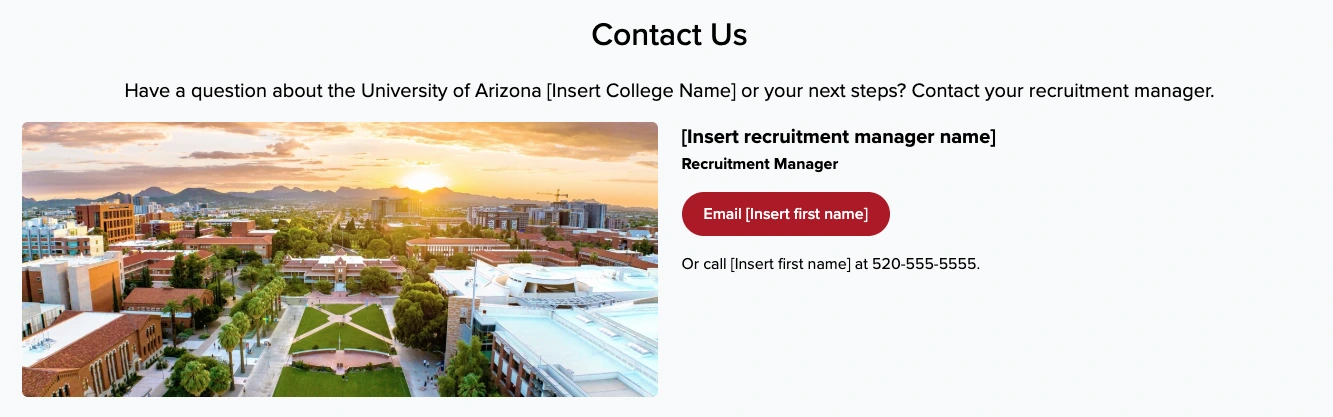
- Add Text with Background
- Full Width: Checked
- Background Color: Gray 100
- Background Pattern: None
- Space Around Content: 5 (3.0rem | ~48px) - Default
- Additional options
- Bottom Spacing: Zero
- Text
- Heading 2: "Contact Us"
- Text size lead: "Have a question about the University of Arizona [Insert College Name] or your next steps? Contact your recruitment manager."
- Bootstrap grid