

How it works
Grabs geolocation data from Pantheon-provided
/cdn-locendpoint. Example (see arizona.edu/cdn-loc){ "client.geo.country_code": "US", }- If it’s a GDPR country (most European countries), it will disable cookies and external content like remote videos and display a consent pop-up. Once the user clicks on “I Agree”, cookies and external content are loaded and allowed for future sessions.
- If it’s a non-GDPR country (like the U.S.), consent is automatically set to “I Agree” without any consent pop-ups appearing.
Image
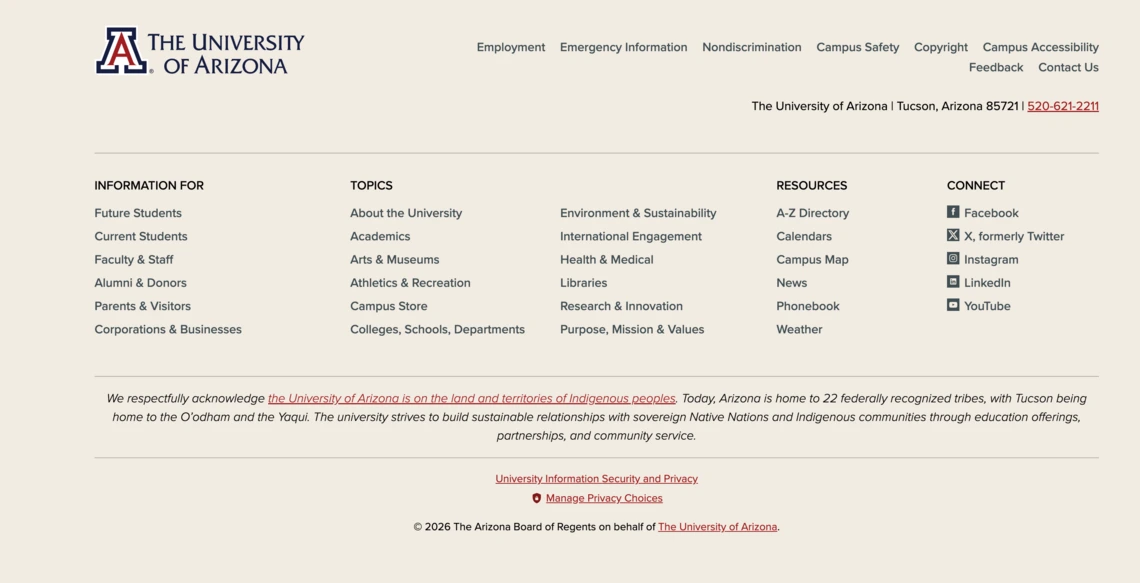
- “Manage Privacy Choices” appears in the footer that allows users to adjust their permissions.Image
How to Enable
A website administrator within Campus Web Services must complete these steps. Please complete a Service Now request referencing this page for assistance.
- Ask Pantheon to enable a
/cdn-locendpoint like "arizona.edu/cdn-loc"- A Pantheon service ticket is required to be made for this request
- Only websites that are using Pantheon's Advanced CDN are eligible to have this functionality
- A website administrator must go to Manage > Extend and install AZ GDPR Consent (
az_gdpr_consent)
How to Test
You would need a VPN to test from Europe, but websites like testlocal.ly allows you to test from different locations.