

The Main Navigation menu sits just above the content of each page and is the most prominent menu on your webpage. Using this menu, visitors can move between pages on your website.
How To Add a Page to the Main Navigation
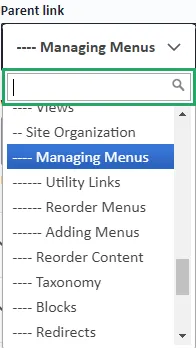
- Create a page or edit an existing one.
- Select Edit > Menu settings > Provide a menu link.
- Enter Menu Link Title.
- Leave Parent Link as <Main Navigation> for the link to be displayed directly on the menu bar. For the example below, the parent link of all visible links is <Main Navigation>.
- If you would like the page to be nested under a page link already on the Main Navigation, select the name of the link from the Parent Link dropdown.
- The deeper a link is nested in the menu will be indicated by the number of dashes preceding the link name. In this example, the pages Utility Links, Reorder Menus, and Adding Menus have been placed under the Managing menus link.
- Save.
AZ Navbar New in QS 3.2.0
If your site is running AZQS 3.2.0 or greater, you can choose to use the new AZ Navbar component variant which includes updated styling and support for a third level of navigation. The new navbar experience is an optional upgrade for AZQS 3.2.0 sites and can be enabled in the Arizona Barrio theme settings.
Enable AZ Navbar theme setting
Note
You must have the Administrator role to be able to modify Arizona Barrio theme settings.
The Administrator role is restricted to Campus Web Services staff, if you would like the AZ Nav Bar enabled, please submit a ticket.
Needing additional support? Book a one-on-one session with a member of the Campus Web Services Strategy & Support team.
- Navigate to the Arizona Barrio theme settings at Appearance > Arizona Barrio.
- In the Components section, expand the Navbar behaviour section.
- Check the Enable AZ Navbar setting.
- Save configuration at the bottom of the page.

Enable third level menu display
To enable styling for any third-level navigation items present in the Main navigation hierarchy:
- Navigate to the Block layout settings at Structure > Block layout.
- Locate the Main navigation block in the Navigation bar region and select Configure.
- In Menu levels, adjust the Number of levels to display from 2 to 3.
- Save block settings at the bottom of the page.

Things to keep in mind when upgrading to AZ Navbar
The AZ Navbar supports Single Dropdowns and Split Dropdowns at the primary navigation level. Previously, only Single Dropdowns were supported (see Menu Folders section on the Managing Menus page).
- To upgrade a Single Dropdown to a Split Dropdown, change an existing
<nolink>to a valid page path. - Common Use Case: Because the former navbar does not support linking to an actual page and a submenu simultaneously at the primary level, you will often find an "Overview" style page as the first child in the secondary-level dropdown. These pages are typically good candidates to promote to the primary level when converting a Single Dropdown to a Split Dropdown.
Depending on your site architecture, you may already have tertiary navigation elements in the Main navigation menu. If enabling third-level navigation styles, be sure to verify that the items are displaying correctly in the respective secondary-level dropdown menus. These were previously ignored by Drupal.
- Common Use Case: The former navbar does not display anything beyond the second level. The sidebar menu, however, may display items beyond the second level. When enabling styling for the third navigation level, be sure to verify that your sidebar menu and main menu are displaying the appropriate items.
Roadmap for navbars in Arizona Quickstart
- AZ Navbar is an optional upgrade with AZQS 3.2.0.
- AZ Navbar will be the default navbar style in AZQS 3.3.0 for new AZQS sites.
- Existing AZQS 3 sites will be upgraded to use AZ Navbar in AZQS 3.4.0. The former navbar implementation will be deprecated with this release. The default depth of the Main navigation block will also be adjusted from 2 to 3 to support this upgrade. Site owners may still elect to downgrade to the former navbar implementation or reduce the depth of the Main navigation block.
- The former navbar implementation will be removed in AZQS 3.6.0.