

These templates are for the purpose of providing information to admitted students.
These pages should not be navigable via the menu and Menu Settings on the page should not be changed from the default of not included.
First, decide on the site menu visibility on the page
You have the option to make the main navigation on your website visible or not visible on the admitted students pages.
Visible Menu
Leave the main menu visible if you would like this page to be a jumping off point to exploring the rest of what your college has to offer.
- Add a new page
- Set the URL alias to /admittedstudents
- Copy the layout directions in your chosen template below
Hidden Menu
Hide the main menu if you would like this page to lead your admitted students down a focused path to completing their next steps.
- Contact your website administrator to enable the Marketing Campaign Page module
- Create a new page
- On the right-hand sidebar of the editing interface, expand the section labeled Marketing Campaign Page
- From the Marketing Campaign Page Style drop-down menu, choose the style that best suits your needs
- Set the URL alias to /admittedstudents
- Copy the layout directions in your chosen template below
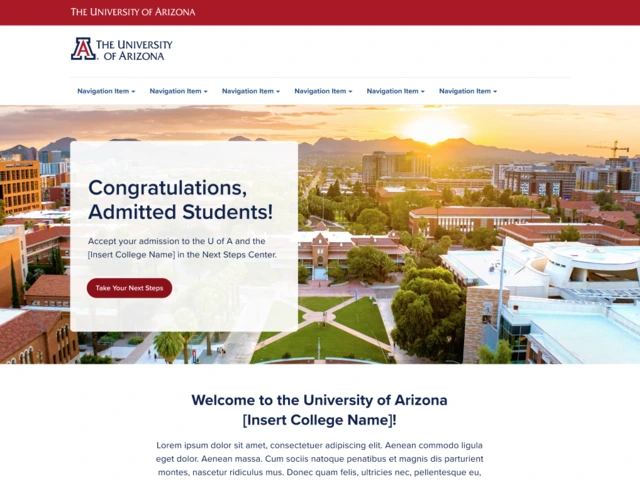
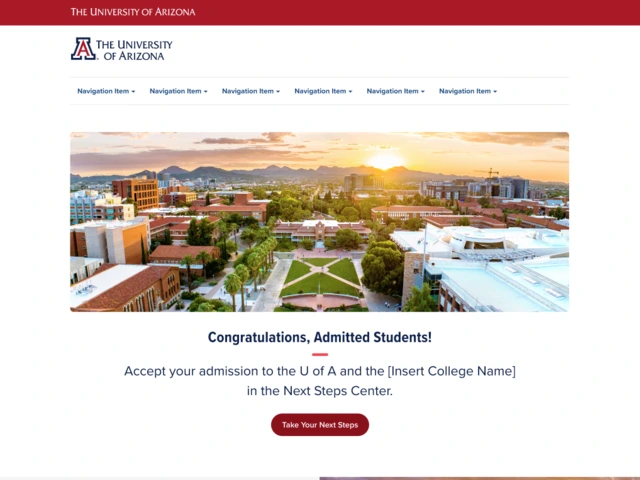
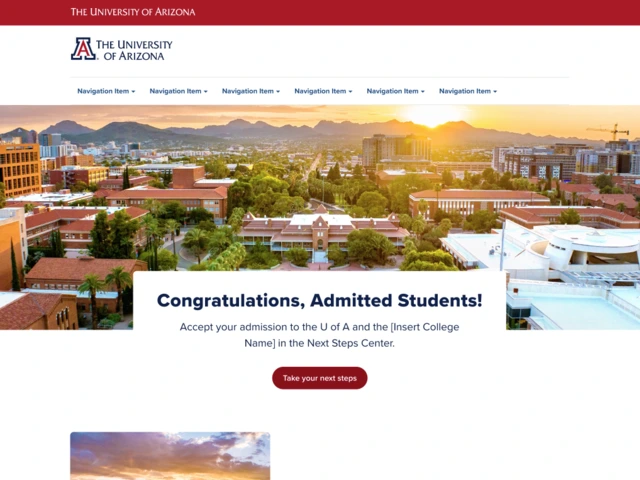
Next, choose your desired template
Each template option provides different directions on how to layout a standard webpage. You will see an example of each template and directions on how to implement them.
Finally, publish your page
When you have completed the page building work, you will need to ensure your page is published.
- Ensure your URL alias (or page's site path) is correct
- The URL alias should be set to
/admittedstudents
- The URL alias should be set to
- Change the page's state from Draft to Published (if needed)
- Clear cache for good measure